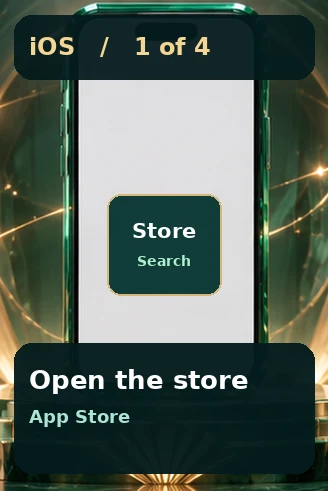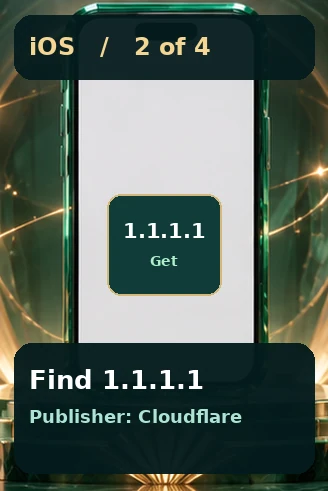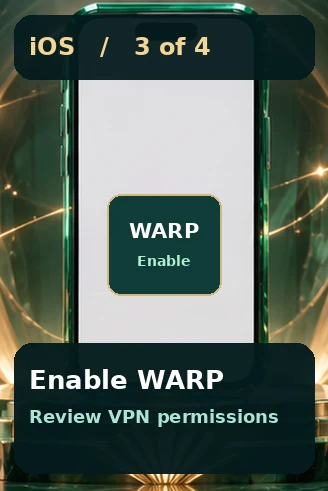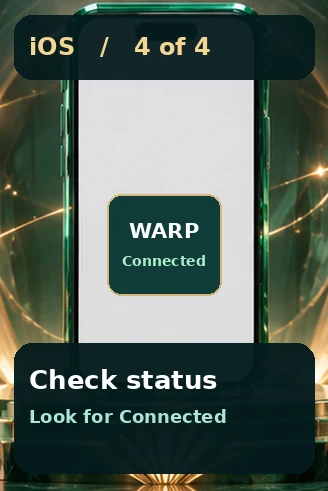

Open the same page in your mobile browser
A link in a chat may open inside the messaging app. If the timer or menu looks incomplete, copy the address and open it in your usual browser. Use the same network for both attempts so you can tell whether changing browsers made a difference. The illustrated device steps below cover connection setup if you choose to use WARP.
Comparing browser and app access
Start with the browser if you only need page information or a countdown. Before installing an app, check the publisher, compatible operating system and requested permissions.
When a page is slow on mobile
Open another site on the same connection first. If both pages are slow, try switching between Wi-Fi and mobile data. If only this site is affected, note the page address and the time before contacting support.
Run a mobile connection check
If a page looks different after switching networks, reload the same URL before comparing the two results. A stale tab can hold an earlier page layout or timer. On iPhone or iPad, try your default browser before switching to another one. On Android, note which browser opens when you tap a link in a message. If the link opens inside another app and controls are missing, open the same address directly in your browser. The setup images below are arranged in device order.
Choose the setup group for your device
Open the iPhone or iPad group for App Store steps. Open Android for Google Play steps. You can expand one group at a time as you compare each image with your own device.